Servo Firmware Upgrade
This guide explains how to upgrade servo firmware through the bus servo configuration software. Before upgrading, confirm the servo model, communication type, and customer key so the wrong firmware is not selected and the servo can keep operating normally.
Warning
Keep the power supply and communication connection stable during the firmware upgrade. Do not power off the device, disconnect cables, or close the PC configuration software. If the upgrade fails, do not repeatedly try firmware for different models. Contact technical support first to confirm the correct recovery method.
1. Open the PC Configuration Software
First, go to the Bus Servo Configuration Software page to download and open the PC configuration software. This bus servo configuration software is used for the upgrade procedure below.
2. Prepare Before Upgrading
2.1 Hardware Connection
Complete the connections in the following order:
- Use the servo cable to connect the servo to the adapter board.
- Connect external power to the servo, and confirm that the voltage meets the servo specifications.
- Use a USB cable to connect the adapter board to the computer.
- Open the bus servo configuration software, refresh the serial port list, and connect to the adapter board.
It is recommended to connect only one servo that needs upgrading at a time. When multiple servo units are connected at the same time, duplicate IDs or insufficient power may cause scanning to fail or interrupt the upgrade.
2.2 Confirm Current Servo Information
After the connection succeeds, click Scan Servo and confirm the following servo information in the servo list:
- The servo can be scanned normally.
- The servo ID matches the expected ID.
- The servo model and communication type match the firmware to be upgraded.
- The current firmware version actually needs to be upgraded.
If no servo can be scanned, first refer to Servo Not Detected / No Response Troubleshooting to check servo detection, power supply, wiring, and serial port driver issues.
3. Upgrade Procedure
3.1 Open the Firmware Online Upgrade Tool
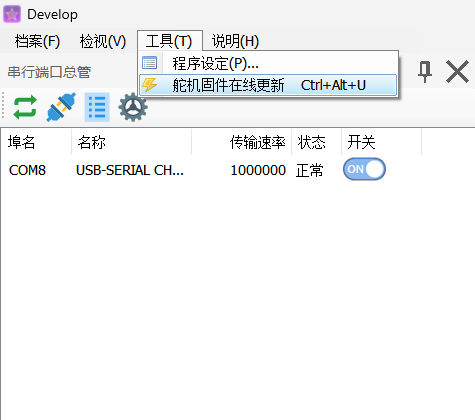
- 1. Open the PC configuration software;
- 2. Select Tools -> Servo Firmware Online Upgrade to open the servo firmware online upgrade tool;
3.2 Enter the Customer Key
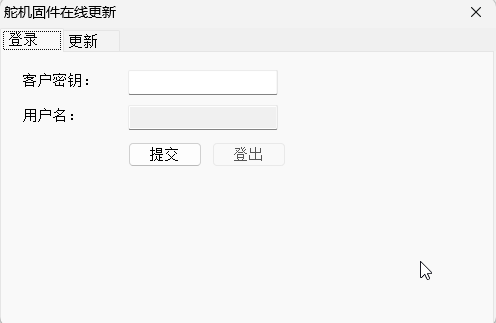
Select the corresponding customer key based on the servo series:
| Servo Series | Customer Key |
|---|---|
| UART brushless servo series | FSK-BF332C71318B |
| UART brushed 25kg/35kg series | FSK-C13B5B266E6B |
- 1. Enter the customer key for the corresponding servo series;
- 2. Click Log In to enter the firmware upgrade screen;
Caution
Each customer key corresponds to a different firmware series. Do not mix them. If you are not sure whether the servo belongs to the brushless series or the brushed 25kg/35kg series, check the servo model or datasheet first.
3.3 Scan the Servo
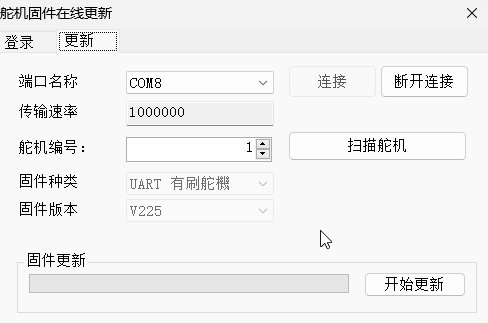
- 1. Switch to the Update page;
- 2. Click Scan Servo to start the servo scan;
- 3. After scanning is complete, confirm that the servo information shown in the list matches the servo that actually needs to be upgraded;
Before upgrading, pay special attention to the following:
- The firmware series matches the servo series.
- The firmware communication type matches the servo communication type.
- The firmware version is higher than the current version, or meets the current upgrade requirement.
- The firmware description does not include restrictions that conflict with the current application.
If multiple versions are listed, it is recommended to select the officially recommended version first. Unless technical support explicitly requests it, do not downgrade or upgrade across series at will.
3.4 Start the Update
- 1. Click Start Update;
- 2. Wait until the progress bar completes. During this process, do not move the servo, disconnect the power supply, or unplug the USB cable;
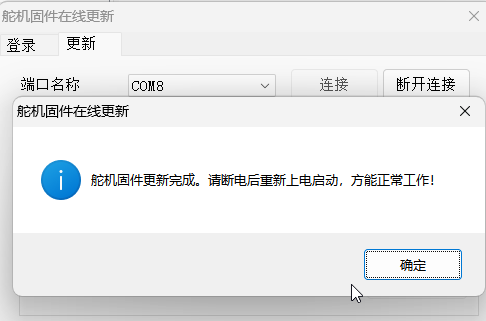
- 3. After the update is complete, power-cycle the servo;
- 4. Scan the servo again and confirm that the firmware version has been updated;
4. Post-Upgrade Check
After the upgrade is complete, it is recommended to perform the following checks:
- Scan the servo again and confirm that the servo can be identified normally.
- Check whether the servo ID, baud rate, and protection parameters match the original settings.
- Perform a small-angle, low-speed test to confirm that the servo responds normally.
- If the unit is used in a mechanical structure, validate it without load first, then resume loaded operation.
Warning
If the servo parameters are restored to default values after the upgrade, rewrite the ID, baud rate, angle limits, protection parameters, and other configurations according to the actual application.
5. FAQ
The firmware list cannot be retrieved after entering the customer key.
- Check whether the computer network connection is normal.
- Confirm that the customer key is entered completely, and make sure it does not contain extra spaces.
- Check whether the PC configuration software version is too old. Update it to the latest version if necessary.
- If the list still cannot be retrieved, contact technical support to confirm the customer key permissions or server status.
The progress stops or an error is reported during the upgrade.
- Do not immediately power off the device or retry repeatedly.
- Check whether the external power supply is stable, and avoid current limiting or voltage drops.
- Check whether the USB cable or adapter board connection is loose.
- Close other software that is using the serial port, then reconnect.
- If the upgrade fails multiple times, record the error message, servo model, and current firmware version, then contact technical support for assistance.
The servo cannot be scanned after the upgrade.
- Power-cycle the servo and the adapter board.
- Confirm whether the serial port number has changed, then refresh the device list again.
- Check whether the baud rate changed after the upgrade.
- Connect only one servo for scanning.
- If the device still cannot be identified, contact technical support. Do not flash firmware from another series by yourself.