Star Arm 102
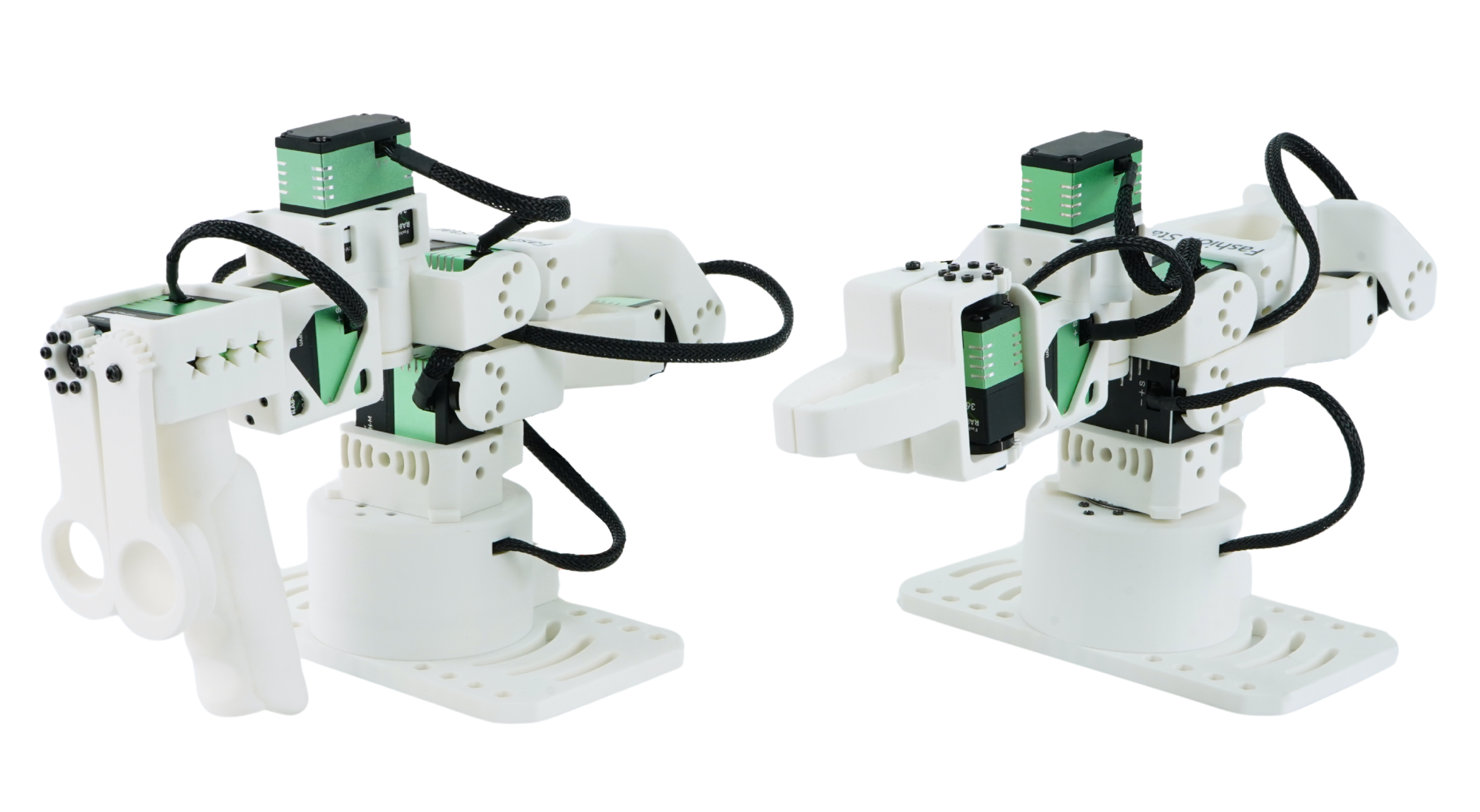
Open-Source 6+1 DOF Robot Arm for LeRobot
Six arm joints plus a gripper. Start with teleoperation, try the released ACT block-placement task, then learn to collect demonstrations and train your own policy.
Explore the series · International store · Buy on Taobao · GitHub
Choose your starting point
-
Identify your LD, HD, or FL setup, secure and connect the hardware, check communication, and choose a control path.
-
Watch the ACT demonstration, check camera and environment requirements, and download the pretrained block-placement policy.
-
Work through teleoperation, scene setup, data collection, training, and evaluation for your own task.
-
Find web control, Python SDK, ROS 2, MoveIt, Gazebo, and reBot integration guides.
-
Find specifications, assembly guidance, BOM, CAD, printing resources, and source code. Check model compatibility and license scope.
-
Troubleshoot connections, calibration, cameras, and models, and gather the details needed for support.
Try your first AI task
The released ACT example uses a 102-FL with overhead and front cameras to place a block in the center of a workspace. No training is required, but you must install the matching environment, calibrate the arm, and reproduce the scene. This policy is task-specific; changing objects, camera placement, or lighting requires another evaluation.
Watch the demonstration · Open the setup and run checklist
Choose a path for your equipment
| Your equipment | Where to begin |
|---|---|
| LD or HD + FL | Getting Started: check connections and small teleoperation movements first |
| FL only | Check communication and calibration, then prepare the pretrained ACT example |
| LD or HD only | Check leader feedback or use the web tool's virtual follower |
| 102 leader + reBot | Follow the reBot integration path and check adapters and versions |
| DIY parts | Review assembly resources and BOM before first use |
Continue learning and developing
For your own task, follow the Learning Path. For motion planning, simulation, or system integration, choose a tool in Control & Development. Dependencies, zero references, and calibration files can differ across control paths; read versions and compatibility first.
Drawings and printing resources are maintained in the CAD and 3D Model download center. Refer to the resource licenses for the scope of open code and design files.